 Dr.Fone
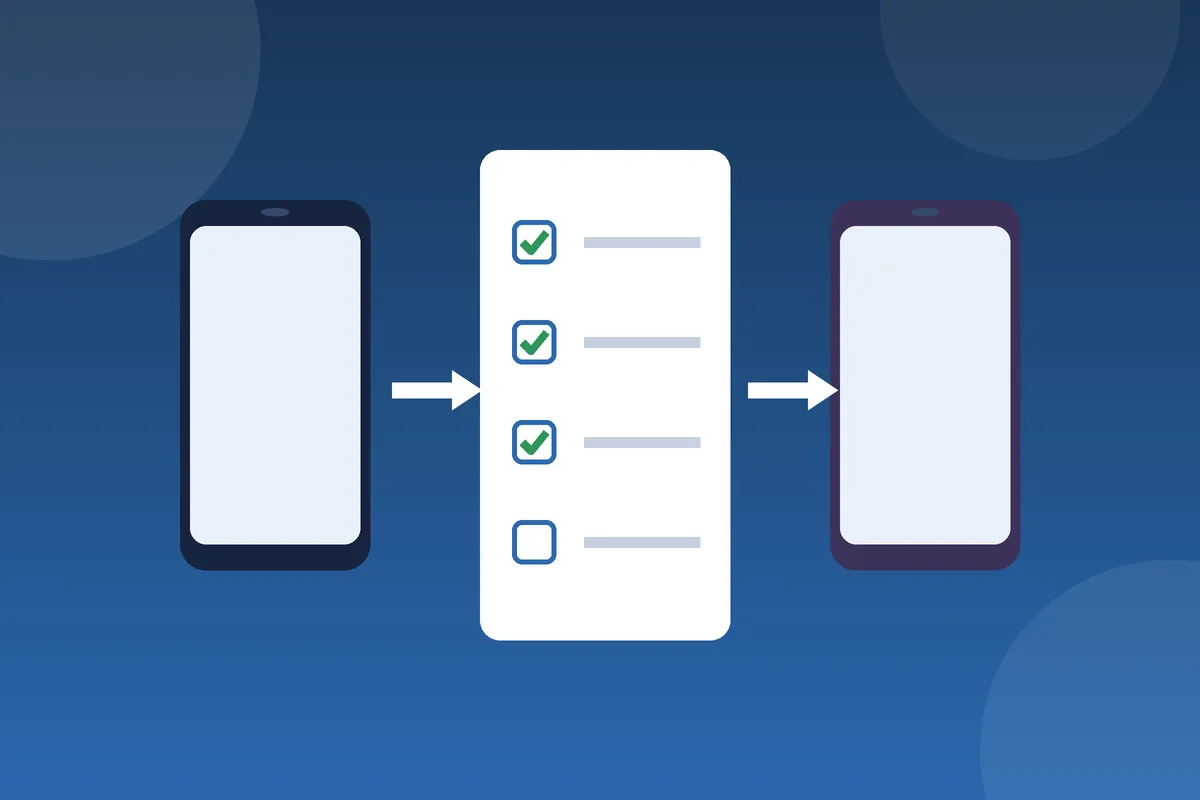
Switching Phones with Dr.Fone: A Pre-Transfer Checklist
The complete preparation routine for a phone switch, so the transfer itself becomes the easy part.
PHONE & WHATSAPP TRANSFER
Most post-transfer gaps have one of four causes: the data is still indexing, the type was never selected, the direction does not support it, or it lived in an account, not on the phone.
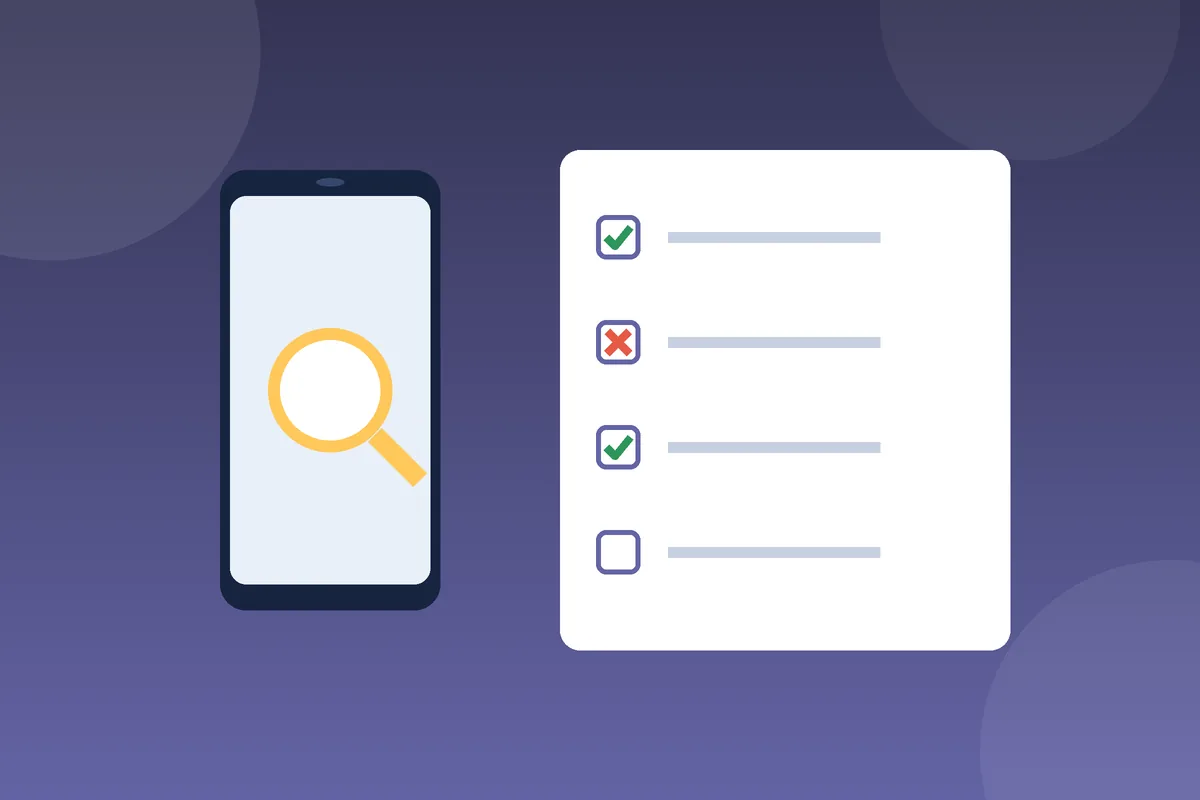
The hour after a transfer is when panic does its worst work. The new phone shows half the photos, an empty call log, messages that stop in March, and the conclusion writes itself: the transfer lost my data. Sometimes something did fail. Far more often, the data is present but still indexing, or it was never part of the transfer for a reason that has a fix, or it lives in an account and arrives when you sign in. This guide is the audit that separates those cases, category by category, while your old phone, which you have not reset, sits safely nearby as the reference copy.
Two rules govern the audit. First, do not delete, reset or "fix" anything on either phone until the audit is complete; several apparent gaps resolve themselves with time and a restart. Second, compare against evidence, not impressions: counts and known items on the old phone versus the new one. "It looks emptier" is not a finding. "The old phone has 8,214 photos, the new one shows 3,900 after a restart and an hour of indexing" is a finding, and it points somewhere specific.
Freshly transferred data is indexed by the phone in the background: photo libraries build thumbnails and face groupings, message databases settle, media stores scan. Until that finishes, galleries show partial counts, search misses items that are present, and apps can look emptier than they are. Restart the new phone once, leave it plugged in and connected to Wi-Fi, and give a large library real time, an hour or more for tens of thousands of items, before auditing counts.
Judge after that settling period, in the phone's own apps, not in a file browser or a third-party gallery that may read a different index. If a category completes itself during the wait, and many do, you have learned the cheapest lesson in this category: completion messages describe the transfer, while the phone needs its own time to present the result.
Compare the gap against the transfer you ran. Was the missing category in the selected data types? An unselected type is not a failure; it is a choice you can still execute, by running a second, targeted transfer for just that type, or by restoring that category from your Dr.Fone backup. Was the category supported in your direction at all? The type table in the transfer guide sets the expectations: app data largely never moves, some types are same-platform only, and subscription content does not travel as files.
Direction errors belong in this step too. If almost everything is missing rather than one category, reconsider whether the transfer ran in the intended direction, or whether you are looking at a phone that received an empty state. The old phone's contents settle that question in seconds: if the old phone still holds everything, nothing is lost, and the fix is a correctly directed rerun.
An audit held in your head degrades quickly, especially across the hours that indexing and syncing can take. Write it down instead: one row per category, with four entries, the old phone's figure, the new phone's figure, the state of play, and the suspected cause once you know it. Counts where the phone reports them, a named example item where it does not, such as a specific thread, a specific album or a specific contact you can search for on both devices.
The written form does three jobs. It stops you re-checking categories that already passed and forgetting the one that did not. It gives each fix a before and after figure, so a targeted transfer or a sync can be judged rather than vibes-checked. And it creates the record you would need if the problem ever reaches the publisher's support or a technically minded friend: not "some photos are missing", but "photos: 8,214 on the source, 5,930 on the destination after indexing, gap concentrated in the last two years", which is a statement someone can reason about.
Work the rows in a fixed order and mark each one closed only when its figures match or its gap has an explanation you have accepted in writing. A row explained is not a failure: "app data for the banking app, account-based, returns at sign-in" is a closed row. The rows that matter are the unexplained ones, and the discipline of the table is that they cannot hide among the explained ones. By the time the table is complete you will know, category by category, whether the transfer did its job, which is a very different state from hoping it did.
For each missing category, ask where it truly lived on the old phone. Contacts that sync from Google or iCloud, calendars from an account, notes in an email account, photos in a cloud library with only thumbnails on the device: none of these were phone data in the transfer's sense, and all of them return by signing into the account on the new phone and letting sync complete. This is the commonest explanation for missing contacts and calendars specifically.
The test is easy: on the old phone, open the category and find its account or sync setting. If the data shows an account name, sign into that account on the new phone, wait for sync, and re-audit. Beware the duplicate trap: if you both transfer contacts and sync the same contacts from an account, the new phone may end up with two of everything. Duplicates are annoying but safe; merge them in the contacts app or the account's web interface once you are sure both copies are complete.
App data gaps resolve the same way. An app that opens empty on the new phone usually wants its account signed in, after which its server-side data returns. An app with no account and purely local data is the genuine hard case, and its data was a backup question, not a transfer question; your pre-transfer backup is where it survives.
A whole category missing is one kind of problem; a category that arrived partially is another, and its pattern is the clue. Read the shape of the gap before reaching for fixes. If the missing items cluster by date, for example photos present up to a certain year and absent after it, suspect a boundary: the newer material lived somewhere the older material did not, most often a cloud library holding recent originals while the phone carried the rest, or the other way round. If the missing items cluster by size, such as long videos absent while short clips arrived, suspect an interrupted or space-limited media stage. If the missing items look random, a thread here and an album there with no pattern at all, suspect that the transfer was stopped and restarted, or that you are comparing against an index that still has not finished.
Each pattern has its own first move. A date boundary is resolved on the old phone: check where the newer items actually live, download originals to the device if they are cloud-held, then run a targeted transfer for that category. A size pattern is resolved on the destination: free space well beyond what the category needs, then rerun that category alone, because a rerun of a mergeable category is cheap and safe. A patternless gap is resolved by waiting and re-auditing first, and only then by considering whether the destination state is trustworthy enough to build on at all.
Resist the temptation to fix a partial gap with a full transfer rerun. A full rerun redoes the categories that are already correct, takes the longest, and for any category that replaces rather than merges it gambles state you have verified as good against a problem it may not solve. The targeted rerun, one category, figures recorded before and after, is the professional unit of repair in this whole audit. The exception is the patternless gap combined with other signs of a disturbed first run; there, the honest fix is the one the transfer guide describes: restore the destination to its pre-transfer state and run one clean transfer, rather than layering repairs on a foundation you no longer trust.
One gap is nobody's fault and no tool's failure: the data created in the interval. A switch takes time, sometimes days, and during that interval the old phone often stays alive, receiving messages, taking photos, logging calls. The transfer faithfully moved the old phone's state at the moment it ran; everything since is a delta that exists only on the old phone, and it will look, on the new phone, exactly like missing data.
Diagnose it by the boundary: if the new phone's messages, photos and call log are complete up to the day and hour the transfer ran and absent after it, you are looking at a delta, not a defect. The fix matches the size of the gap. A handful of items can simply be sent or shared from the old phone to the new one by ordinary means. A larger delta in a mergeable category, such as photos, can be closed with a targeted transfer of that category. Message stores deserve care: if the new phone has been receiving messages since the switch, its message history is now the living one, and overwriting it with the old phone's slightly longer history would trade a small gap for a worse one. In that case the old phone stays as the archive of record for the interval, and the practical answer is to forward the few messages that genuinely matter.
Prevention is built into the switching checklist: run the transfer as late as possible in the switch, move the SIM promptly once verification is done, and stop using the old phone as a phone the moment the new one takes over. Every day of dual use manufactures delta. The audit's job is simply to recognise it when it appears, because a delta misread as a transfer failure leads people to rerun transfers they never needed, over data that was never lost.
With causes identified, fix in the least invasive order: sign into accounts and let sync finish; run a targeted transfer for a category that was unselected; restore a specific category from your Dr.Fone backup where the transfer cannot supply it; download cloud originals and rerun a media transfer if the library itself was the gap. After each fix, re-audit that category only. Avoid the full-transfer rerun as a reflex: it is the longest option and can overwrite destination state you have already verified as good.
Sign-off is a deliberate act. When every category matches the old phone or has an explanation you accept, and you have used the new phone normally for a few days, calls, messages, banking, photos, then the switch is done and the old phone may be prepared for handover, for which the data eraser guide is the safe route. Until that day, the old phone and your backups stay exactly as they are. Every recovery in this category was possible because somebody kept the source intact a little longer than felt necessary.
Not necessarily. Wait for indexing after a restart, then check whether the old phone actually held the originals or cloud thumbnails. Cloud-held photos arrive through the account, not the transfer.
The contacts arrived twice, once by transfer and once by account sync. Use the contacts app's merge duplicates feature, or merge in the account's web interface, after confirming both sets are complete.
Check the old phone first; if it still holds your data, nothing is lost. A total gap usually means the transfer ran in the wrong direction or you are inspecting the wrong device or account. Rerun in the correct direction.
A gap that stops at a date usually marks a boundary, not a failure: recent photos often exist as cloud originals with only previews on the old phone, or they were taken on the old phone after the transfer ran. Check where the recent items live on the old phone, then close the gap with a targeted transfer of that category.
The complete preparation routine for a phone switch, so the transfer itself becomes the easy part.
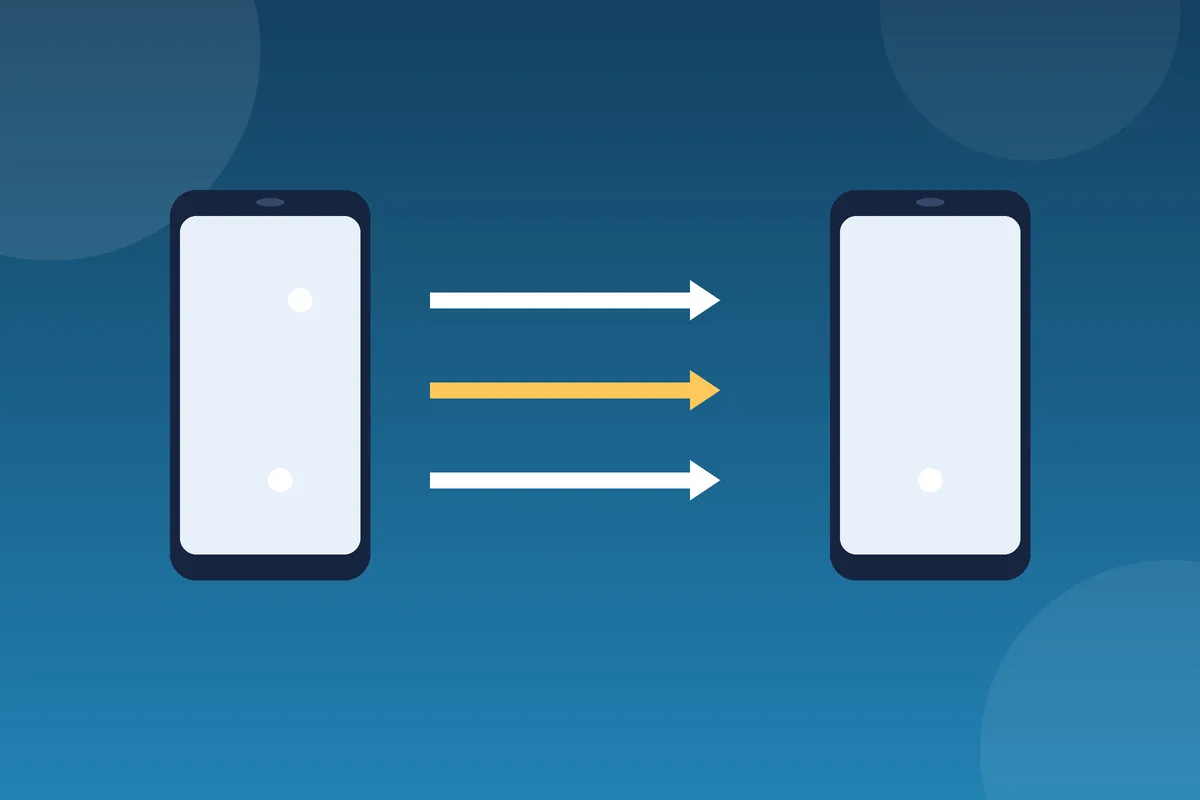
The phone transfer workflow step by step, with the data-type limits that differ by direction.
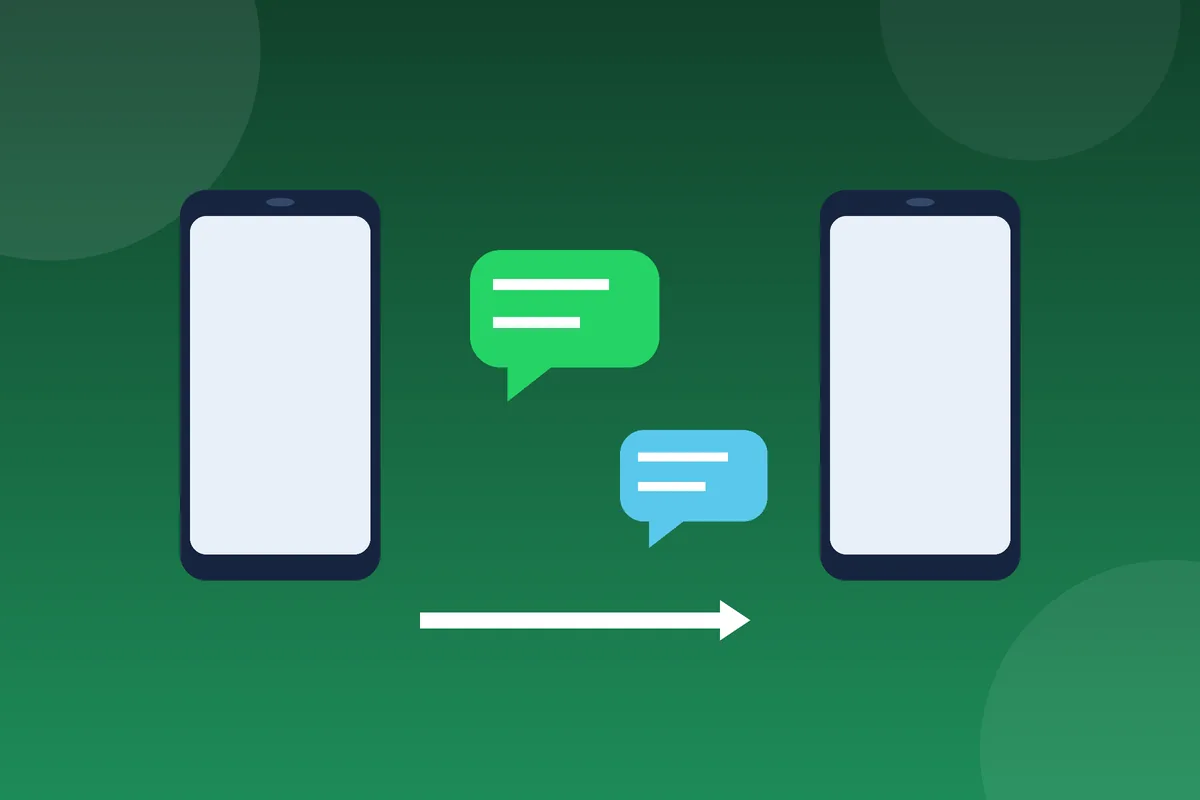
The complete WhatsApp transfer workflow for iOS and Android in both directions, including WhatsApp Business notes.