 Dr.Fone
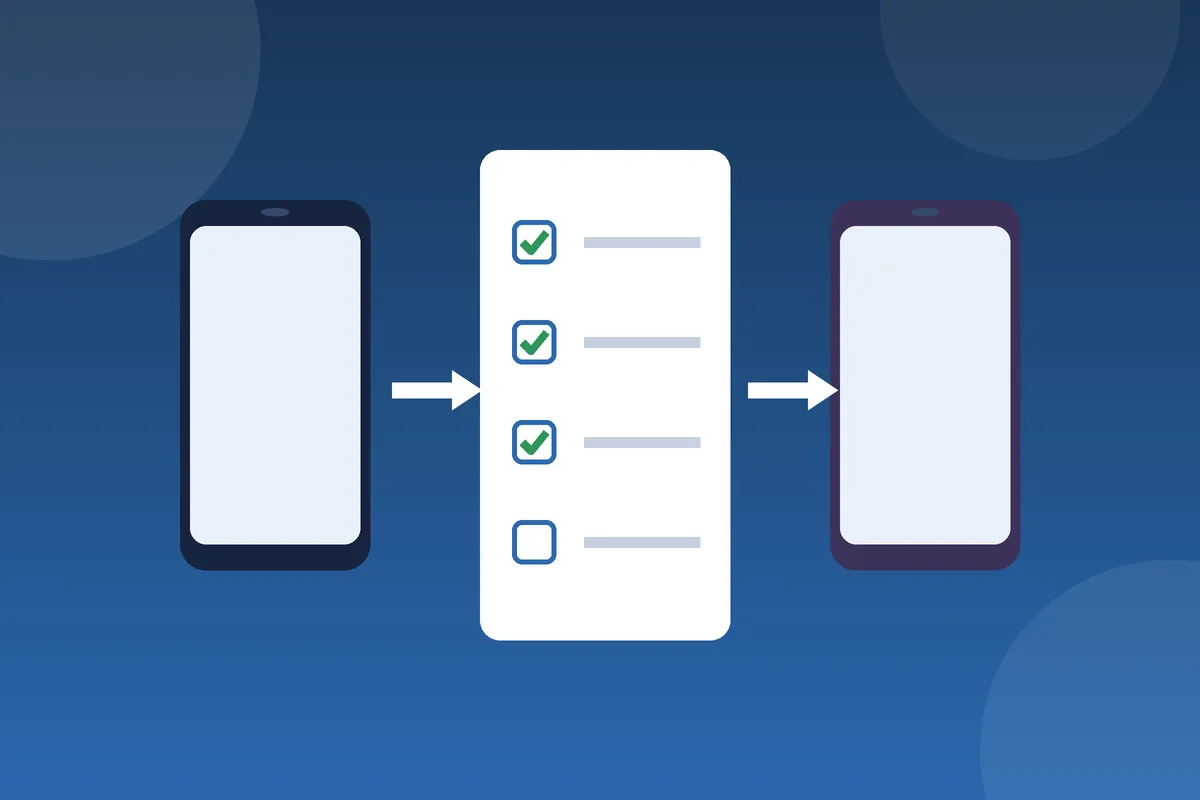
Switching Phones with Dr.Fone: A Pre-Transfer Checklist
The complete preparation routine for a phone switch, so the transfer itself becomes the easy part.
PHONE & WHATSAPP TRANSFER
Connect both phones, confirm which is the source and which is the destination, select data types honestly, and let the transfer run undisturbed.
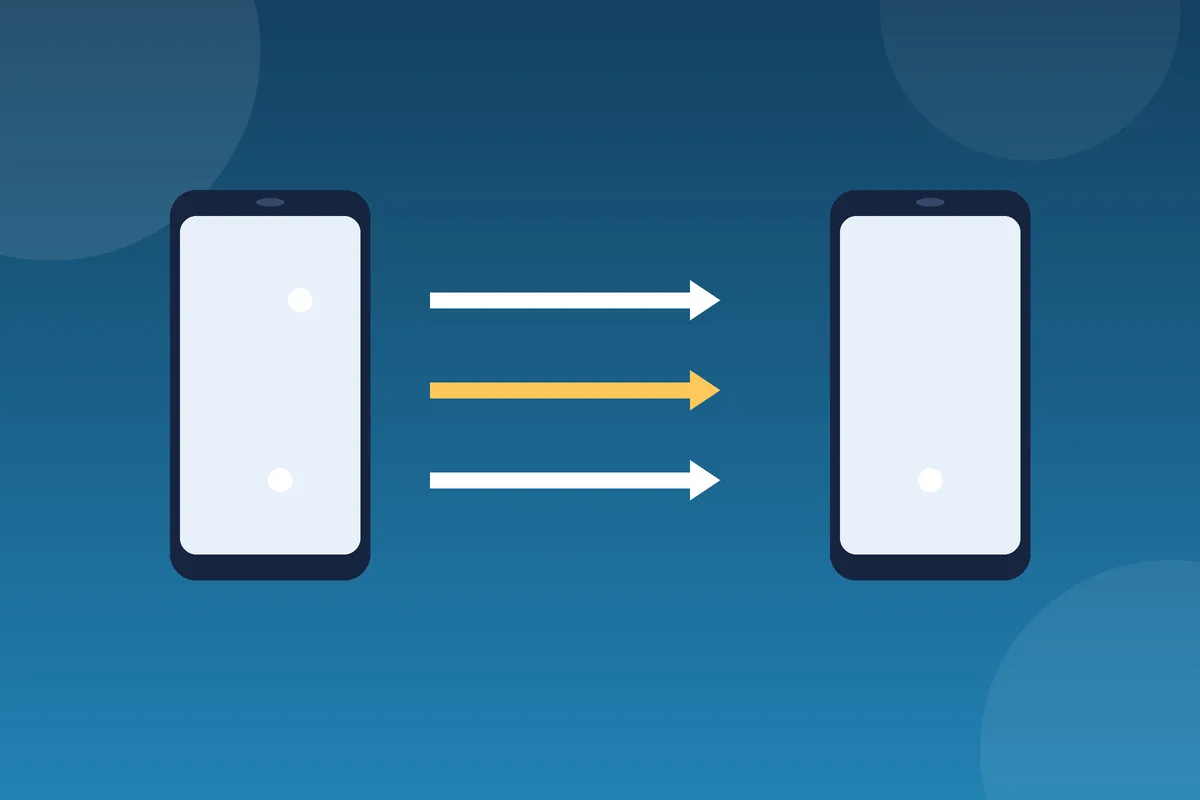
Dr.Fone's Phone Transfer moves supported data directly from one phone to another through your computer: iPhone to iPhone, Android to Android, iPhone to Android and Android to iPhone. It is the tool for the data that lives on the devices themselves: contacts, messages, photos, videos, music, call history and similar content, with the exact list depending on the direction of the transfer. This guide assumes you have done the preparation in the switching checklist, including backups of both phones. If you have not, stop and do that first; a transfer is a write operation on your new phone and deserves a safety net.
WhatsApp is deliberately not part of this guide. Chats move with a dedicated tool and a different sequence, covered in the WhatsApp transfer guide. Treating WhatsApp separately is not a limitation to work around; it reflects how differently chat data is stored and verified.
Connect both phones to the computer with data cables and open Phone Transfer. The program shows the two devices in two roles: source and destination. This is the single most important screen in the whole workflow. Read it twice. The source is the phone data comes from; the destination is the phone that will receive and, for matching data types, have existing content replaced or merged. The program provides a control to flip the direction if the phones appear the wrong way round; use it if needed, and confirm the model names and, if shown, storage details match the physical phones in your hands.
If one phone is not detected, do not proceed with a shrug and a hope. Fix it with the detection guide. A transfer attempted with an intermittently connected phone becomes a stalled transfer, and stalled transfers are how partial, confusing results happen.
Unlock both phones and keep them awake. Answer trust and debugging prompts now, at the start, rather than having the transfer pause on a prompt while you are making tea.
The data type list is not identical in every direction, because the platforms store things differently. Broadly: contacts, messages, call history, photos, videos and music files are the core types that travel in most directions. Around that core, support thins: some system-bound content does not move at all, some types move only within the same platform, and app data is largely excluded everywhere, because apps guard their internal data and expect accounts to rebuild it.
| Data type | What to expect |
|---|---|
| Contacts | Transfer in all directions. Contacts that live in a cloud account also return by signing in, so avoid double routes that create duplicates. |
| Messages (SMS, and iMessage between iPhones) | Transfer supported in most directions; cross-platform moves convert to the destination's message store. |
| Photos and videos | Transfer in all directions. Items that exist only in a cloud library, not on the device, must be downloaded to the device first or moved by the account route. |
| Music files | Owned files transfer. Subscription downloads do not, as explained in the music guide. |
| Call history, calendars, reminders | Supported in many directions; account-synced versions may be simpler and cleaner. |
| Apps and app data | Apps themselves are re-downloaded from the store on the new phone. App-internal data generally does not transfer; accounts restore it. |
| Not part of this tool. Use the dedicated WhatsApp transfer. |
Select the types you actually want moved. Transferring everything by default is common and usually fine, but if the destination already has content, for example it is not brand new, think about which types should overwrite or merge, and read the program's warning for any type that replaces existing data before you confirm.
Start the transfer and then protect it. Both phones stay connected, unlocked and untouched; the computer stays awake and on mains power. Progress reporting in transfers is uneven, with long plateaus while large media files move, so a static percentage for several minutes is not by itself a stall. The signs of a genuine stall, and the recovery sequence, are covered in the parallel WhatsApp troubleshooting guide's logic and, for this tool, by the same principles: check cables and prompts first, and never unplug a phone mid-write as a first response.
Expect the duration to scale with media. A contacts-and-messages switch can take minutes; a hundred gigabytes of video can take hours. This is why the checklist insists on an uninterrupted time block and full batteries. If you must stop a transfer, use the program's controls, note what completed, and treat the destination as unverified until you audit it.
When the program reports completion, leave the phones connected for a further minute while final writes settle, then disconnect the destination last. The completion message is the start of verification, not the end of the job.
Open the destination phone and check category by category against the source: contacts count and a few known names, message threads old and new, photo library dates at both ends of your history, a video played, music tracks played, call history present. Restart the destination first if lists look incomplete, because freshly written data often needs a re-index before it all appears, and a library still indexing is the commonest false alarm in this audit.
Anything missing goes through the missing data audit, which separates the causes: a type that was never selected, a type unsupported in this direction, data that lived in an account rather than on the phone, and data still indexing. Most gaps resolve into one of those four, with a route to fix each. Keep the source phone intact until the audit is clean and you have lived with the new phone for a few days.
The clean case is a brand new, empty destination, and it is the case most instructions silently assume. Real switches are often messier: the destination may be a hand-me-down with a relative's data still on it, a replacement phone you have already used for a week, or a device you set up from a cloud backup before deciding to transfer as well. In each case the question is the same: for every data type, does incoming data merge with what is there, or replace it?
There is no single answer, because behaviour differs by data type, and the program's own warnings for the pair in front of you are the authority. As a working model, treat library-style content such as photos and music files as additive, where the risk is duplicates rather than loss, and treat account-like stores such as messages and call history as candidates for replacement, where the risk is that destination content in that category is overwritten by the source version. Read every warning the program shows for a selected type before confirming, and if a warning says a category will be replaced, decide explicitly whether the destination's version of that category matters. If it does, back it up first or deselect the type and move that category by another route.
The duplicate risk deserves its own sentence, because it is the commonest self-inflicted mess in this workflow. If the destination already received contacts or photos from a cloud account, and you then transfer the same contacts or photos from the old phone, both copies will coexist. Duplicates are recoverable, merging contacts is a standard feature of contacts apps, but avoiding the overlap is better: pick one route per category, account sync or transfer, and stick to it.
A first transfer rarely has to be the only one. If verification shows that one category is missing because it was never selected, or because you deliberately held it back, the fix is usually a second transfer containing only that category. A targeted rerun is shorter, easier to verify, and far safer than repeating the whole job, because it leaves the categories you have already confirmed untouched.
Prepare a targeted rerun with the same discipline as the first: both phones connected and detected, direction read twice, and only the needed type selected. Pay attention to the destination behaviour for that type before you start. If the type merges, a rerun is harmless even if some of it already arrived. If the type replaces, confirm that the source version is the one you want to win, because the destination's current version of that category will be overwritten. Take a fresh backup of the destination first if its current state of that category has any value.
There is one situation where a targeted rerun is the wrong tool: when the first transfer itself behaved strangely, stopping mid-category or reporting errors you did not resolve. Layering a second transfer over a corrupted first result produces a destination nobody can audit with confidence. In that case, restore the destination from the backup you took before the first transfer, or reset it if it was new, and run one clean full transfer instead. Knowing which situation you are in is the whole skill: gaps from selection are fixed by addition, while doubts about integrity are fixed by starting that category, or that phone, again.
If your old phone is gone and only a Dr.Fone backup remains, the route is a restore, covered in the restore guide, not a transfer. If both phones are in your hands, transfer is usually the better route: it is selective, it handles cross-platform moves, and it does not require the destination to be empty. The two routes can complement each other: transfer the bulk, then extract a specific item from an older backup if the audit finds a gap that predates the old phone's current state.
What you should not do is layer routes blindly, transferring and then restoring the same categories over the top, which manufactures duplicates and muddles which copy is authoritative. One primary route, verified, then targeted fixes: that order keeps a switch clean.
For data types that replace rather than merge, existing destination content in those categories can be overwritten. The program warns where this applies. That is why the checklist backs up the destination first if it holds anything.
Yes, both directions are supported, with data type support varying by direction. Check the type list the program shows for your exact pair before starting.
Large media libraries make transfers slow, and progress can plateau. Check that both phones are still connected, unlocked and that the computer has not slept before treating it as stalled.
Yes. A later transfer can carry a single category, such as messages only, and is usually the cleanest way to fix a category that was left out. Just confirm whether that type merges or replaces on the destination before you rerun it.
The complete preparation routine for a phone switch, so the transfer itself becomes the easy part.
The complete WhatsApp transfer workflow for iOS and Android in both directions, including WhatsApp Business notes.
Create and restore computer-based WhatsApp backups, and understand how they differ from iCloud and Google Drive copies.