 Dr.Fone
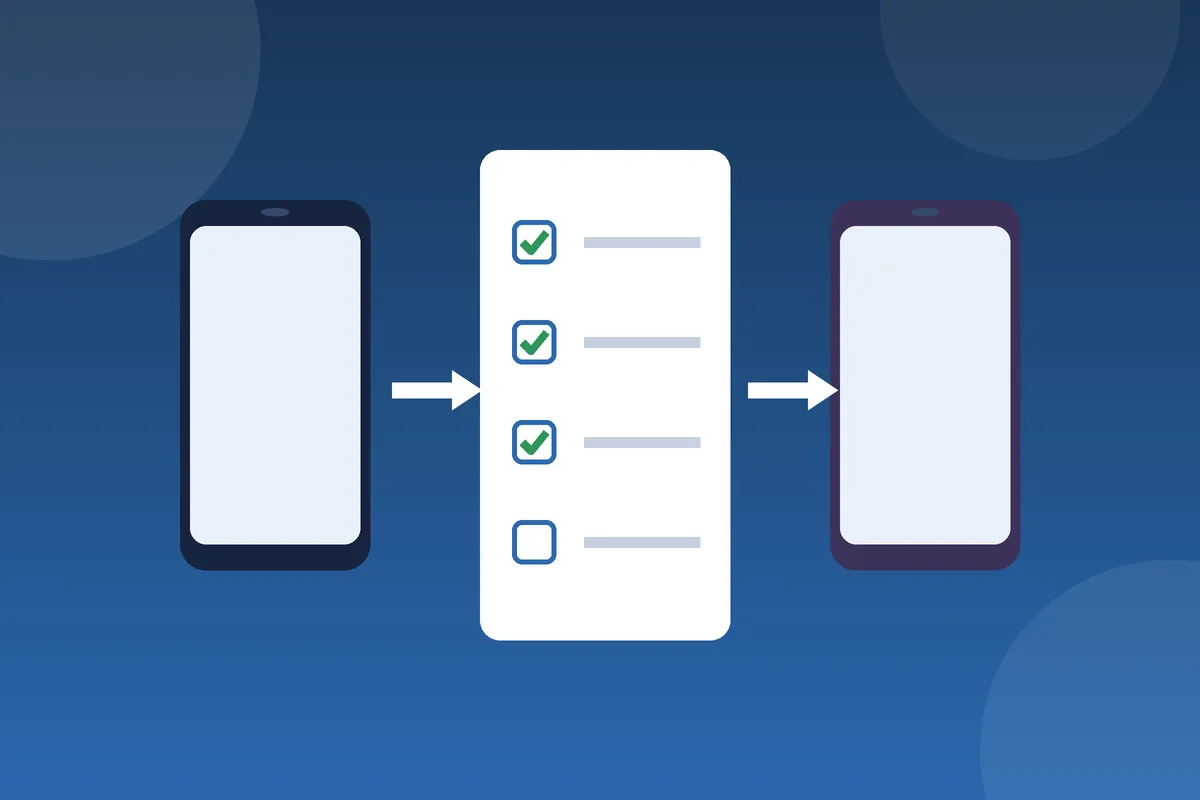
Switching Phones with Dr.Fone: A Pre-Transfer Checklist
The complete preparation routine for a phone switch, so the transfer itself becomes the easy part.
PHONE & WHATSAPP TRANSFER
WhatsApp transfers succeed when the order is right: back up the source chats, transfer with the dedicated tool, and activate WhatsApp on the new phone once, at the correct moment.
WhatsApp chats are usually the most emotionally loaded data on a phone and the most awkward to move, because WhatsApp's own backup systems are platform-bound: an iPhone backs up to iCloud, an Android phone to Google Drive, and neither restores onto the other platform. Dr.Fone's WhatsApp Transfer exists to cross that boundary, moving chats between iPhone and Android in both directions, as well as between phones on the same platform, including WhatsApp Business in the supported scenarios. It is a separate tool from the general Phone Transfer, with its own workflow and its own rules.
This guide gives the workflow and, just as importantly, the order of operations around it, because most WhatsApp transfer failures are sequencing failures: WhatsApp activated on the new phone too early, the source chats never backed up, or the transfer attempted after the number had already moved. The preparation in the switching checklist applies in full. Note the licensing reality from the trial guide: backing up WhatsApp is available in the free trial, while the transfer itself requires activation.
On the old phone, make a WhatsApp backup with Dr.Fone first, using the workflow in the WhatsApp backup and restore guide. Also confirm WhatsApp's own backup on the old phone is current where that exists. You now have two safety nets under the transfer, and the Dr.Fone backup doubles as an alternative route: if the direct transfer struggles, restoring that backup onto the new phone may succeed where the live transfer did not.
Check the basics that decide eligibility. The phone number: WhatsApp accounts are phone numbers, and the smoothest transfers keep the same number. If you are also changing numbers, do the number change inside WhatsApp on the old phone first, let it complete, and only then transfer. The app versions: update WhatsApp on both phones to current versions before starting, because version mismatches between source and destination are a quiet cause of restore failures. And the space: the destination phone needs room for the chat database and its media, which for long-time users can be many gigabytes.
You have two routes to the same destination, and choosing deliberately beats defaulting. The direct transfer moves chats from phone to phone in one session. The backup and restore route writes the chats to your computer first, then restores them onto the new phone as a separate step, as the backup and restore guide describes. Both cross platforms. They differ in what they demand and what they leave behind.
| Consideration | Direct transfer | Backup and restore |
|---|---|---|
| Phones needed together | Both phones, connected in the same session | One phone at a time; the old phone can be gone by restore day |
| What remains afterwards | The chats on the new phone, and nothing else | The chats on the new phone, plus a dated backup on your computer |
| Best suited to | A planned switch with both phones in hand and time to finish in one sitting | An old phone that must be returned, repaired or reset before the new one is ready, or anyone who wants the safety copy as a permanent habit |
| Recovery if something fails | Retry the session, with the backup you made first as the fallback | Retry the restore alone; the source step is already done and proven |
Notice that the backup comes first in both routes. In the direct route it is your insurance; in the two-step route it is the method itself. That is why this guide insists on it before anything else happens: whichever way the switch goes, a verified computer backup of the chats is the asset that makes every later decision calm.
The rule that governs everything: WhatsApp on the new phone should be activated as part of the transfer process, not before it. If you install WhatsApp on the new phone, verify your number and start using it, you create a new, empty chat state that a transfer or restore then has to overwrite, and in some flows the new activation makes the old chats unrestorable without starting over. The clean sequence is:
Dr.Fone's on-screen instructions for your specific direction are the authority where they differ from any general description, because the steps genuinely differ between iPhone-to-Android and Android-to-iPhone. Read each screen rather than tapping through from memory of a previous switch.
If the process stalls or errors at a stage, note the stage and message and go to the WhatsApp troubleshooting guide rather than restarting blindly; several stages are safe to retry and a few need the backup route instead.
It helps to separate three layers that people lump together as "my WhatsApp". The first layer is the chat history itself: your one-to-one and group threads and the media stored with them on the phone. This is what the transfer moves, and it moves as it exists on the source. A photo that the source phone only holds as a downloadable placeholder, because it was offloaded or never downloaded, travels in that reduced state; the backup guide's rule applies here too, in that the tool can only move what the phone actually holds. If certain media matters to you, open it on the old phone before the transfer so it is genuinely present.
The second layer is your account: the phone number identity, your profile, and your membership of groups as WhatsApp's servers understand them. That layer is not in the transfer at all. It follows the number when you verify on the new phone, which is why the verification step is part of the process rather than an afterthought, and why a number change must be completed inside WhatsApp on the old phone before any transfer begins.
The third layer is settings and habits on the device: notification preferences, chat wallpaper, downloaded sticker packs and similar local configuration. Treat this layer as disposable and re-set it on the new phone rather than hunting for it in the transfer results. The verification section below concentrates on the first layer, because that is the layer that cannot be rebuilt if it is lost. Knowing which layer a disappointment belongs to tells you whether the fix is a rerun, a verification, or thirty seconds in a settings menu.
Verification for WhatsApp means more than seeing the chat list. Check: your most important one-to-one threads, including their oldest messages you can remember; a busy group chat, including whether you appear as a member with history; media inside chats, opening several photos and playing a voice note and a video; starred messages if you use them; and your profile and status settings. Media is the usual gap: a transfer can land text completely while some media is still indexing or, occasionally, missing, and you want to learn that while the old phone is still on your desk.
Give the app time before judging. A large history re-indexes in the background, and media thumbnails populate progressively. Judge after the app has settled and the phone has been restarted once, not in the first excited minute. Anything still missing goes through the missing data audit, and your Dr.Fone WhatsApp backup remains the fallback that makes a second attempt safe.
Only when verification is complete should the SIM move and the old phone be retired, per the checklist. WhatsApp is bound to the number, so the SIM move and the WhatsApp verification belong together at the end of the switch, not scattered through it.
WhatsApp Business is supported by the same tooling in the scenarios Wondershare lists, and the workflow logic is identical: back up first, respect the activation order, verify thoroughly. Business users should add two checks: catalogue and business profile information, and quick replies or labels you rely on, since operational details matter more than chat nostalgia when the account runs a shop. Verify those explicitly after the transfer.
Dual-SIM and dual-app setups, where a phone runs two WhatsApp instances, need care about which instance is being transferred. Confirm the tool is reading the instance that holds your history, and if the second instance matters too, plan it as its own transfer with its own backup. Assumptions are the enemy here; the chat list on screen is the evidence.
A verified transfer is not quite a finished one. For the first several days, keep the old phone powered, charged and untouched, with WhatsApp on it left exactly as it was. It is your reference copy and your court of appeal: if a contact says a message thread looks short, or you cannot find a document someone sent last year, the old phone settles in seconds whether the gap is real. Most such alarms turn out to be search and indexing settling on the new phone, and proving that calmly is worth the shelf space.
Expect small follow-on tasks during the week. Media inside older chats may download on demand the first time you open those threads. Group chats resume their normal flow from the moment of verification; messages that arrived on the old phone after the transfer began belong to the gap between the two states, so if the switch took days, glance at the old phone for anything that landed in between and forward the few items that matter. Re-set the local preferences, notifications, wallpaper and privacy choices, which live in the layer that does not transfer.
At the end of the week, make a fresh Dr.Fone backup of WhatsApp from the new phone. That backup closes the switch properly: the authoritative copy of your chats now lives on the new device and in your computer library under the new device's name, and the old phone's backups can be archived rather than treated as the live safety net. Only then does the old phone join the end of the switching checklist, ready for handover or storage.
Yes, both directions are the tool's core purpose, along with same-platform moves. Follow the on-screen steps for your direction, since they differ.
Not necessarily, but the clean route may require reactivating in the right order, which can mean the new phone's WhatsApp state gets replaced by the transfer. Back up anything new first, then follow the troubleshooting guide's sequencing advice.
Backing up WhatsApp is supported in the free trial. The transfer itself is a completion action that requires activation, per the publisher's trial information.
For the direct transfer, yes: both connect to the computer in one session. If the old phone has to be handed back before the new one arrives, use the backup and restore route instead, which needs only one phone at a time.
The complete preparation routine for a phone switch, so the transfer itself becomes the easy part.
The phone transfer workflow step by step, with the data-type limits that differ by direction.
Create and restore computer-based WhatsApp backups, and understand how they differ from iCloud and Google Drive copies.