 Dr.Fone
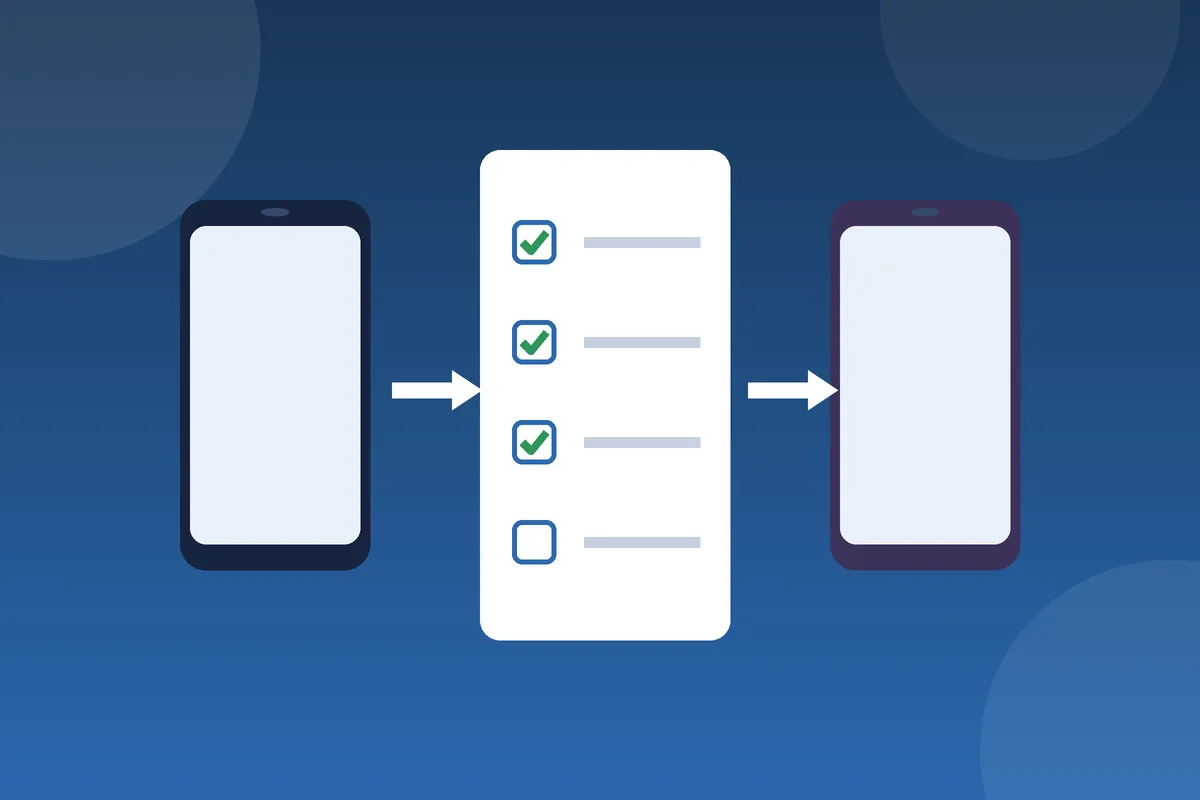
Switching Phones with Dr.Fone: A Pre-Transfer Checklist
The complete preparation routine for a phone switch, so the transfer itself becomes the easy part.
PHONE & WHATSAPP TRANSFER
A Dr.Fone WhatsApp backup lives on your computer, works across platforms, and restores onto iPhone or Android. It is the backup WhatsApp's own system cannot give you.
WhatsApp's own backups are useful and limited in the same way: an iPhone's chats back up to iCloud and an Android phone's to Google Drive, and each restores only onto its own platform. The day you switch platforms, or the day a cloud backup is missing, corrupted or overwritten by an empty one, that limit stops being theoretical. Dr.Fone's WhatsApp backup writes the backup to your computer instead, under your control, and restores it onto an iPhone or an Android phone, which makes it both a safety net and a migration route.
This guide covers creating the backup, what it contains, restoring it to the same phone and to a different one, and how to keep the backup healthy over time. The direct phone-to-phone route is the WhatsApp transfer guide; backup and restore is the two-step alternative that also leaves you with a lasting copy. Per the publisher's trial information, creating the backup is available in the free trial; restoring is a completion step that requires activation.
Back up on a schedule if WhatsApp matters to you: before phone repairs, before system updates, before switching devices, and periodically in ordinary life. A computer backup is also the only WhatsApp backup fully in your possession; cloud backups depend on accounts staying in good standing and storage subscriptions staying paid.
A backup is a snapshot, so its value depends on when the shutter clicks. Four moments deserve a fresh backup even if you keep no other schedule. The first is immediately before a phone switch or a restore: a backup taken a week earlier silently excludes a week of conversations, and the gap is usually discovered only when someone asks about a message that is not there. The second is before the phone leaves your hands for repair or service, when the device may come back reset or replaced. The third is before a number change: complete the change inside WhatsApp on the phone first, let the account settle under the new number, and then back up, so the backup belongs unambiguously to the account you will verify later.
The fourth moment is before you delete or reinstall WhatsApp to fix a problem with the app itself. Reinstalling is a reasonable cure for a misbehaving app, but the phone's local chat state is exactly what a reinstall puts at risk, and people routinely discover this in the wrong order. Back up to the computer first, confirm the listing, and only then reinstall and restore. The same logic applies before major system updates on the phone: the update is very likely to go well, and the backup is what makes "very likely" good enough.
Between events, a simple rhythm beats an elaborate one. If WhatsApp carries your family life or your business, a backup every week or two keeps any loss small; if it is mostly casual conversation, monthly is a defensible choice. What matters is that the interval is shorter than the amount of history you would hate to lose, and that the newest backup is never the only one, as the health section at the end of this guide explains.
A WhatsApp backup from the phone holds your chat history as it exists on that device: one-to-one and group threads, text, and the media stored with them, photos, videos, voice notes and documents, subject to what is actually present on the phone. Two boundaries follow. Media you offloaded or that WhatsApp shows as downloadable placeholders is only included in its downloaded form; if a photo in a chat is a blurry preview awaiting download, the backup holds what the phone holds. And the backup is a snapshot of backup day: messages arriving afterwards are not in it, which is why the timing of the backup relative to a switch matters so much.
Your WhatsApp identity, the account itself, is your phone number and lives with WhatsApp's servers, not in the backup. Restoring chats onto a phone always pairs with verifying that number in WhatsApp on the destination. A backup cannot move your account to a different number by itself; number changes are done inside WhatsApp first, as the transfer guide explains.
A completed backup is a claim, and like every claim in this category it should be checked against evidence before you rely on it. The check takes a minute and uses the listing the program shows for the backup you just made. Confirm the device name is the phone you intended, because in a household with several similar phones, backing up the wrong handset is a real and quiet error. Confirm the date and time are this run, not a previous one you are mistaking for it. Then judge the size against your expectations: an account with years of photos, videos and voice notes should weigh substantially more than a fresh account's, and a backup that is dramatically smaller than the WhatsApp storage figure the phone itself reports is a backup to investigate, not to file away.
If the program lets you browse or preview the backup's contents, use that ability at least once per backup that matters. Seeing your thread list and a sample of media inside the backup, without restoring anything, converts trust into knowledge. Where preview is not offered, the size and listing checks above, plus the habit of keeping the previous backup until the new one has been proven by a restore or a preview, give you the same protection by a different route.
Treat the backup made just before a switch as a named asset. Note which backup in the list is the switch backup, and do not let routine later backups blur the record of which copy holds the pre-switch state. When a restore goes wrong months from now, the question will be which backup was authoritative, and the answer should be written down, not reconstructed from memory.
Restoring to the same phone is the recovery scenario: WhatsApp was deleted, the phone was reset, or the chat database was damaged. The sequence: install WhatsApp on the phone but think before verifying, because the restore flow pairs with activation. Connect the phone, open the WhatsApp tooling, choose the restore route, select the backup, and follow the prompts, which will coordinate the restore with WhatsApp's activation on the device. When it completes, verify the number in WhatsApp if asked, then let the history load and check the threads and media that matter, as in the transfer guide's verification routine.
Understand what a restore replaces. The restored history overwrites the WhatsApp state on the phone for that account. If the phone's WhatsApp has newer messages that are not in the backup, for example you have been using WhatsApp for a week since the backup, those newer messages are at risk. In that situation, back up the current state first, then decide which history is authoritative. There is no merge of two chat histories; one wins.
Restoring a computer backup onto a new phone is the two-step migration: back up the old phone, restore onto the new one. Its advantage over the direct transfer is the pause in the middle: the backup exists as a durable artifact, so the old phone can be retired, repaired or reset once the backup is verified, before the new phone is even set up. Its cross-platform ability is the headline: an iPhone's WhatsApp backup restores onto Android and an Android backup onto iPhone, crossing the boundary that iCloud and Google Drive cannot.
The activation order from the transfer guide applies unchanged: WhatsApp on the destination should be fresh, the number verified as part of the restore flow, and the SIM move left until the end. Update WhatsApp on the destination to a current version first. After restoring, verify as thoroughly as for a transfer, threads, groups, media, voice notes, and give media time to index before judging gaps. The missing data audit is the follow-up if anything is absent.
This is the scenario the whole routine exists for, and it is worth walking through before it happens to you. Your phone is gone. Your chats survive in two places: WhatsApp's own cloud backup if you had it enabled, bound to your platform and your cloud account, and your Dr.Fone backups on your computer, bound to nothing but your number. The computer copy has one decisive advantage in a crisis: it does not care what platform the replacement phone runs, so a lost iPhone can be replaced by an Android phone, or the other way round, without the chats becoming the reason you cannot switch.
The sequence on the replacement phone mirrors a restore to a different phone, with one addition at the front: the number. Restoring pairs with verifying your number in WhatsApp, and verification needs the ability to receive a code for that number, which usually means getting a replacement SIM or eSIM for the same number from your carrier. Do that first. A chat restore attempted before the number is reachable again stalls at exactly the step that proves the account is yours. Once the number works, install WhatsApp on the replacement, connect it to the computer, restore the chosen backup through the Dr.Fone WhatsApp tooling, and verify when prompted, following the same activation order as any restore.
Two expectations to set honestly. First, the restored history ends at the moment of the last backup; everything after it lived only on the lost phone and is gone with it, which is the entire argument for the backup rhythm described earlier in this guide. Second, group memberships and your account itself follow the number, as the limits section explains, so you reappear in your groups as yourself; what the backup restores is the history, not the identity. People who have lived through this scenario once tend to become rigorous about backups afterwards. The cheaper path is to become rigorous before it.
It lives on your computer, it is not overwritten automatically by the next run unless you allow it, and it restores across platforms. iCloud restores only to iPhone and Google Drive only to Android.
The backup holds chats for the account that made it. Restoring pairs with verifying that same number. To change numbers, use WhatsApp's change number feature on the old phone first, then back up and restore.
The restore replaces the WhatsApp history for that account with the backup's history. If the phone has newer messages you need, back up the current state first and decide which history wins.
Yes, provided you can verify the same number on the replacement phone, which usually means a replacement SIM or eSIM from your carrier first. The restored history runs up to the moment of the last backup; anything after it was only on the lost phone.
The complete preparation routine for a phone switch, so the transfer itself becomes the easy part.
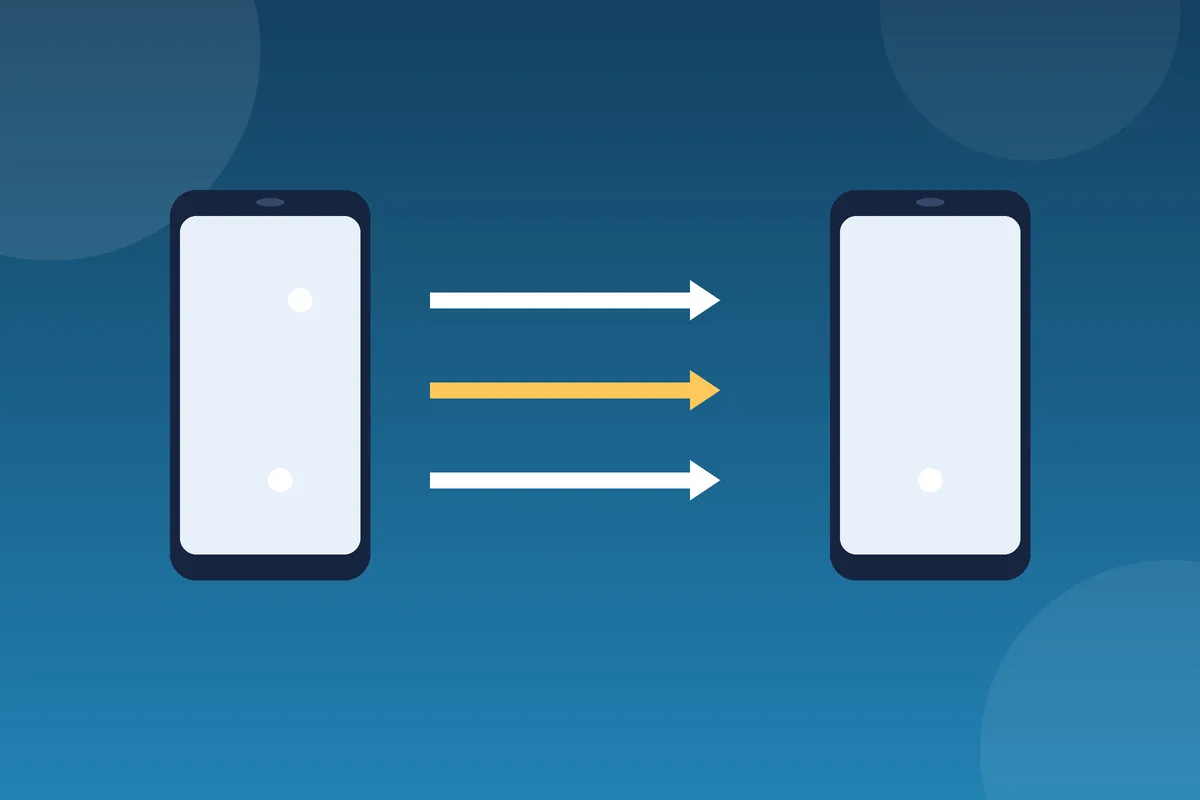
The phone transfer workflow step by step, with the data-type limits that differ by direction.
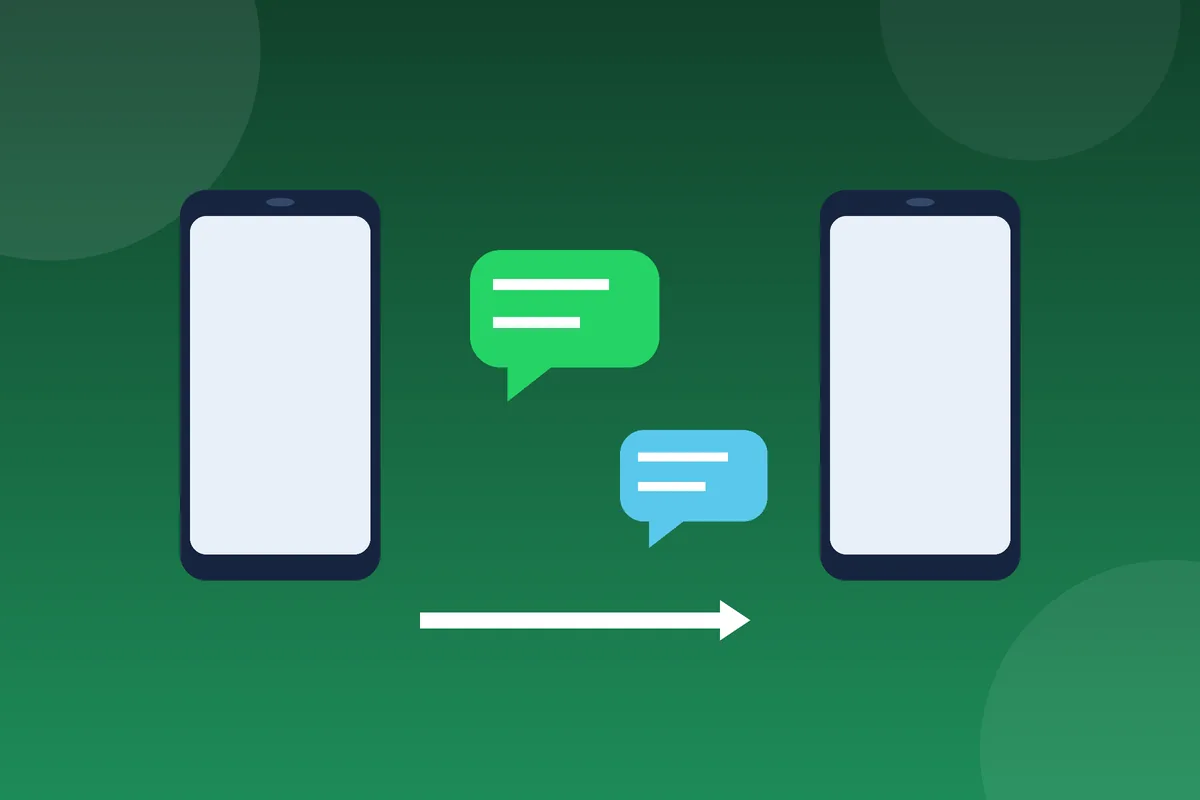
The complete WhatsApp transfer workflow for iOS and Android in both directions, including WhatsApp Business notes.